
Questions, answered.
How ordering, billing and your control panel work, with screenshots of the real pages so you know exactly where to click.
Ordering and setup
Picking a game, a plan and a location, and what happens after you pay.
How do I order a server? Screenshot
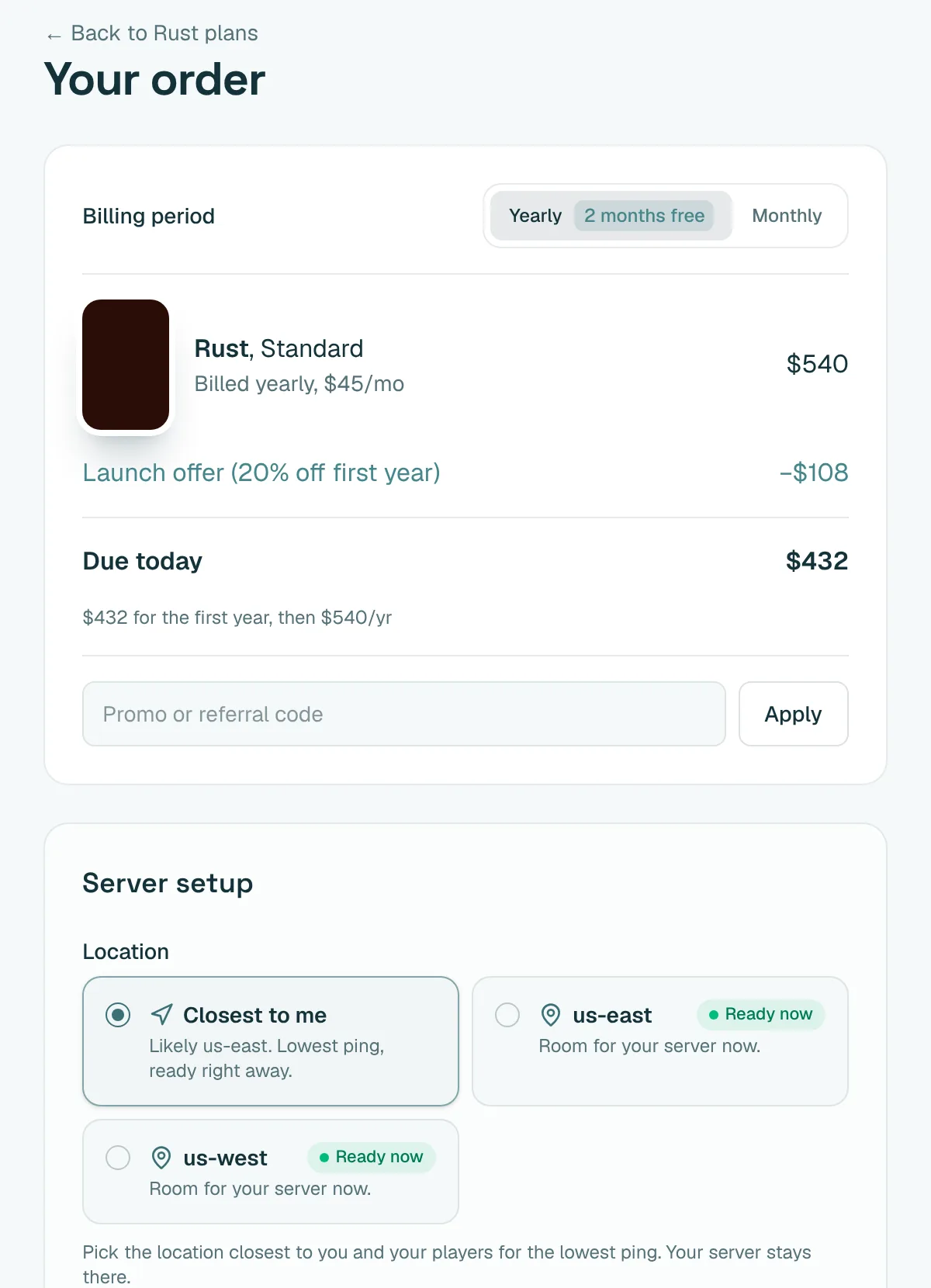
Pick your game, choose a plan, then pick where your server runs and check out by card through Stripe. You can sign in with Discord, Google or your email address, and everything you need is on one page.
- Plan: each one lists its exact memory, CPU and storage.
- Location: pick the one closest to your players for the lowest ping.
- Billing: switch between yearly and monthly right above the order summary.
- Code: have a coupon? Enter it before you pay.
How fast is my server ready?
Setup starts the moment your payment is confirmed, and your server installs itself with sensible defaults, so there's nothing to fix before you play. Most servers are running within a few minutes; a first-time Rust or ARK download can take a little longer.
My Servers shows each step while it sets up, then your address appears as soon as the server is online.
Which plan should I pick?
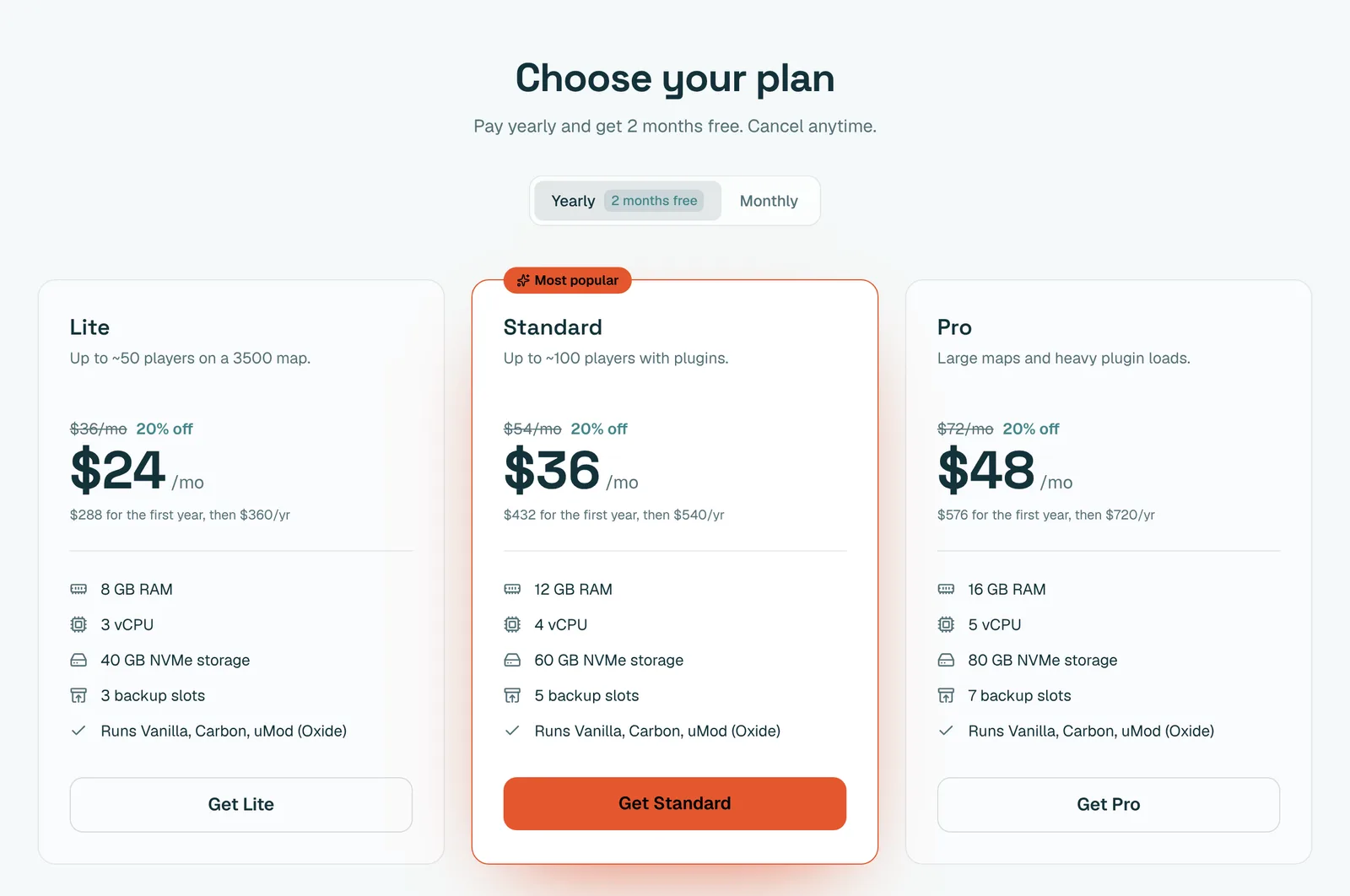
Lite suits a small group of friends, Standard is right for most community servers, and Pro has room for big maps, modpacks and full servers. Dedicated gives you a whole machine no one else uses; our team sets each one up, usually within a business day.
Outgrow your plan later? Upgrade from My Servers and keep your world. You only pay the difference for the rest of your billing period.
Which location should I pick, and what does Waitlist mean?
Pick the location closest to most of your players. Locations marked Ready now start setting up straight away.
A location marked Waitlist is full for the moment. You can still order there: your order waits for room in that location and sets itself up as soon as there is space. Your order stays in the location you picked.
Is there a free trial?
Some games have a free trial, shown on the game's page. Trials need no card and are never charged. The trial server and its files are deleted when the trial ends, so pick a plan before then if you want to keep playing.
Billing, codes and cancelling
Monthly or yearly, coupon codes, your card, refunds and cancelling.
Should I pay monthly or yearly? Screenshot
Yearly gets you 2 months free, which is why prices are shown per month billed yearly. Prefer to pay as you go? Flip the switch to Monthly on the game page or at checkout. There's no contract either way.
How do coupon codes and free codes work?
Type your code into the Code box at checkout, or open a code link (it ends in /c/YOUR-CODE) and it's applied for you. A code replaces any running site-wide offer and still stacks with the yearly price.
If a code makes your first payment $0, you won't be asked for a card at checkout. Add a card from My Servers before your free time ends to keep the server; without one it's paused when the free time is up.
One-use codes work once per person. A limited code is held for you for a short while once you start checkout, so it can't run out mid-payment.
How do I change my card or get an invoice?
Press Manage billing on My Servers. It opens your secure Stripe billing page, where you can update your card and download every invoice and receipt.
How do I cancel? Screenshot
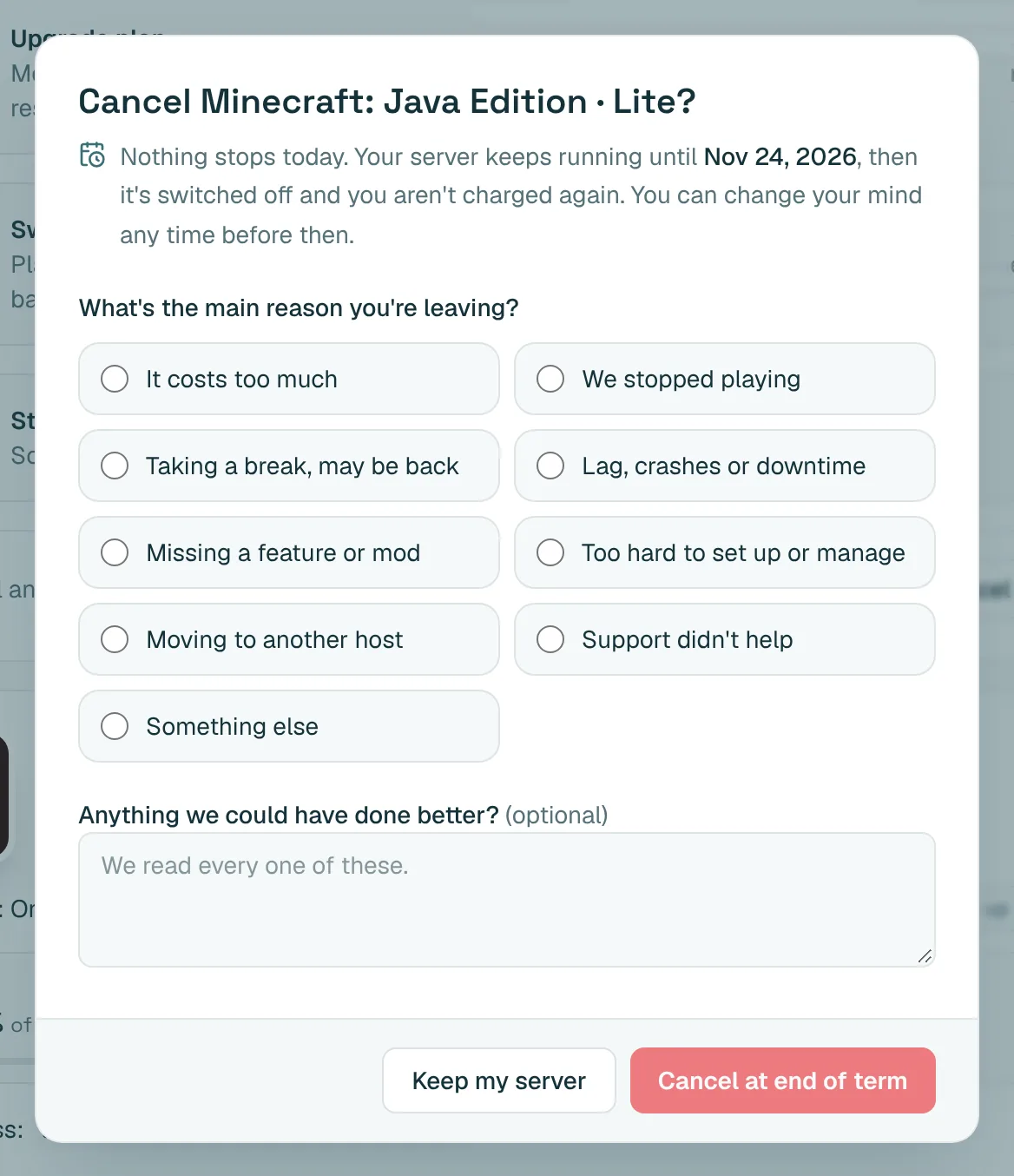
Press Cancel on the server in My Servers and tell us the main reason you're leaving. Nothing stops that day: your server keeps running until the end of the period you paid for, then it's switched off and you aren't charged again.
Changed your mind? Turn renewal back on any time before then and nothing changes.
Can I get a refund?
Yes. Your first payment for a new game server can be refunded in full if you ask within 72 hours. Just message us. Renewals and time left on a plan aren't refunded after that, and dedicated machines can be refunded until they're set up.
Managing your server
My Servers, the control panel, files, backups, mods and switching games.
Where do I find my server and its address? Screenshot
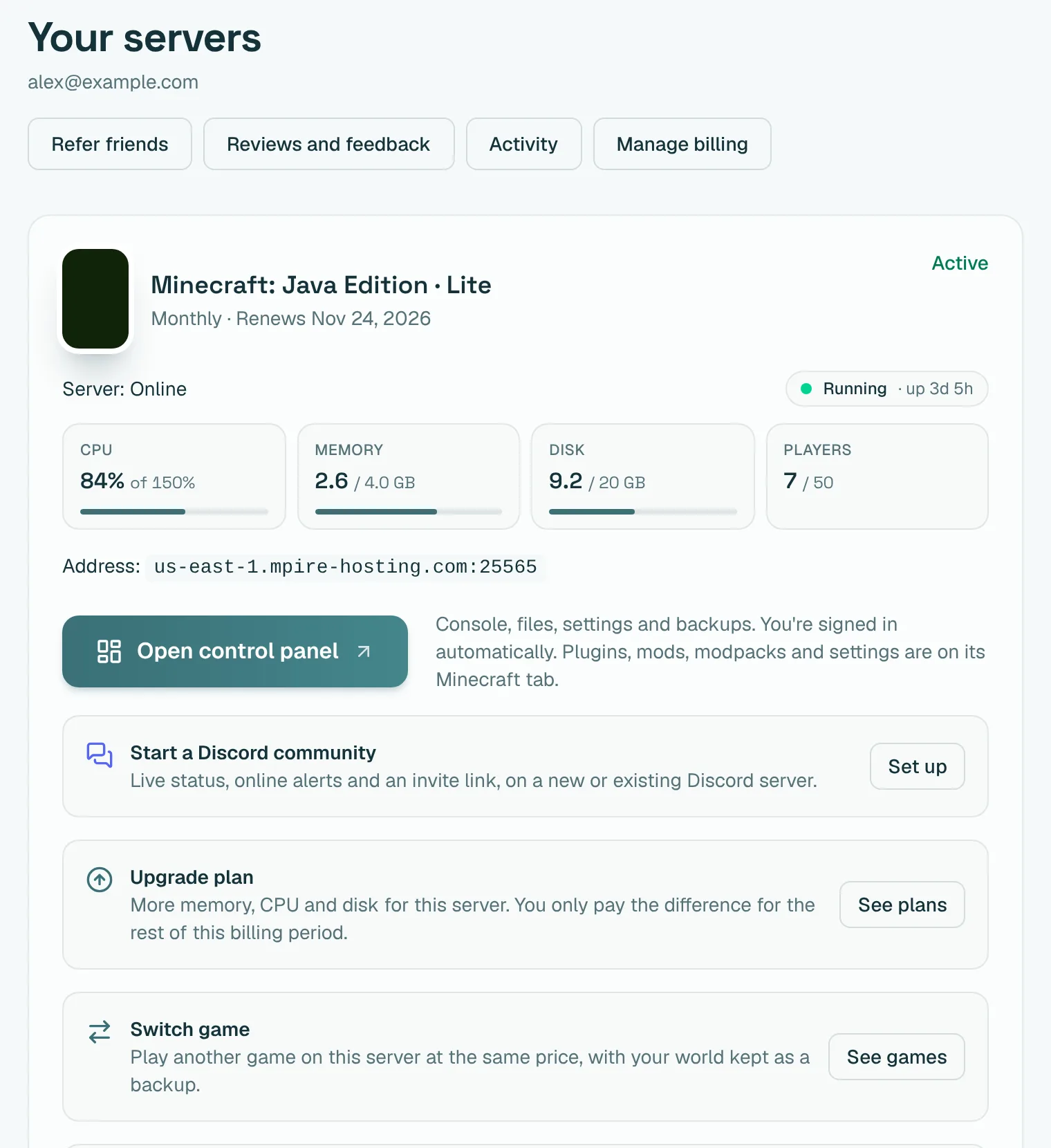
Everything is on My Servers (My servers in the top bar). Each server shows its address to copy, whether it's online, live CPU, memory and player counts, and buttons to open the control panel, upgrade, switch game, connect Discord or cancel.
How do I sign in to the control panel?
Press Open control panel on My Servers. You're signed in automatically with your Mpire account, so there's no second password to remember, and you land right on your server.
The panel has the live console, a file manager, backups, schedules, startup settings and a tab made for your game, such as Rust wipes, Minecraft modpacks or Palworld worlds.
How do I connect with SFTP (FileZilla or WinSCP)?
Because you sign in to the panel through your Mpire account, SFTP uses a password you make for each server:
- Open the control panel and go to Settings.
- Under SFTP Details, press Generate password. It's shown once, so copy it into your SFTP app straight away.
- Use the address, port and username shown on the same card.
Lost it? Press Make a new password. The old password stops working, so update any app that saved it.
How do backups work? Screenshot
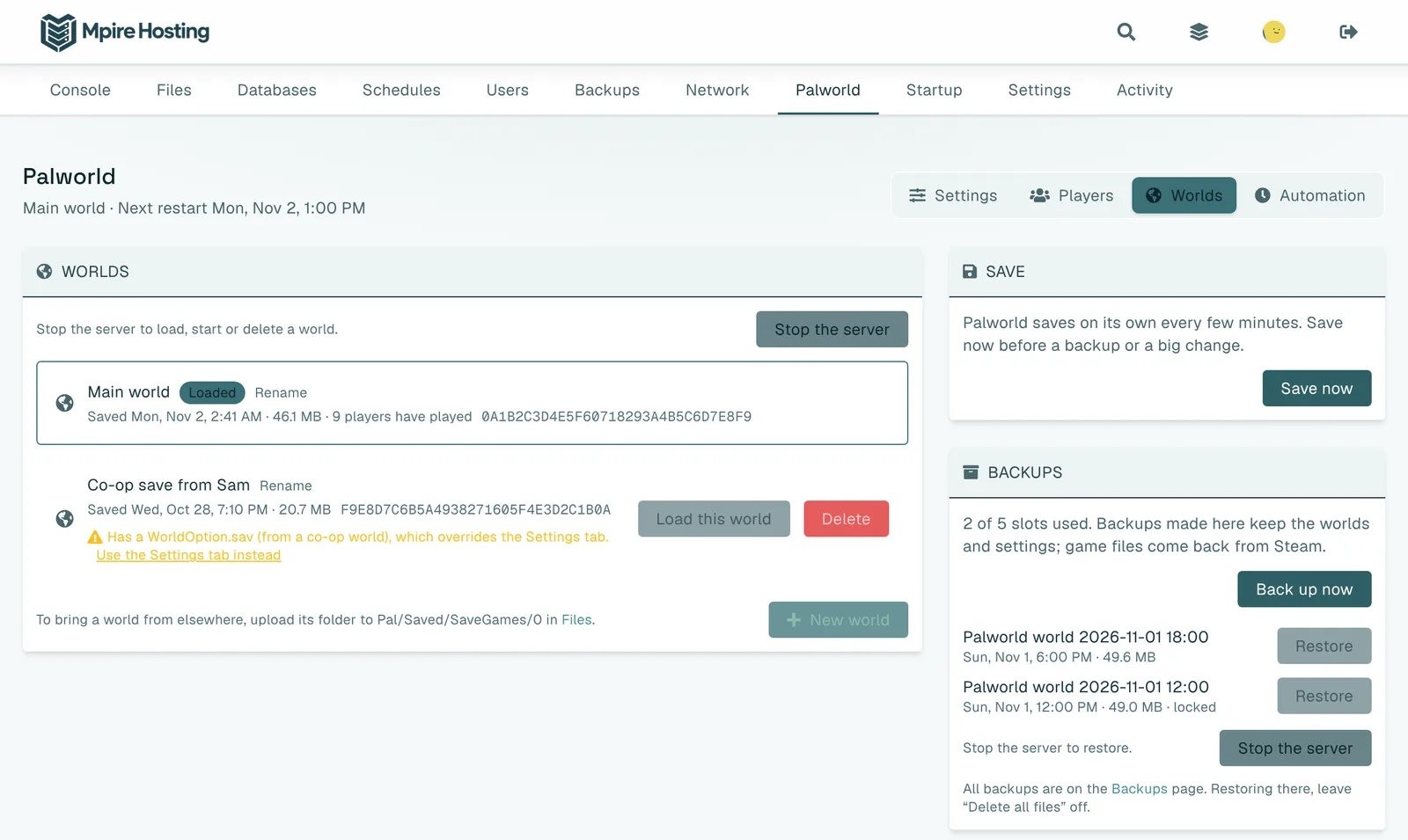
Every plan includes backup slots: 3 on Lite, 5 on Standard, 7 on Pro and 14 on Dedicated. Make a backup any time from the panel's Backups tab and restore it to roll your world back.
Some games also back up from their own tab. Palworld, for example, can back up and restart on a schedule you set, and Rust can back up before each wipe.
Can I install plugins, mods and modpacks? Screenshot
Yes, from the control panel, with no file juggling:
- Rust: search uMod and Codefling from the Rust tab and install Carbon or Oxide plugins in one click, or upload your own.
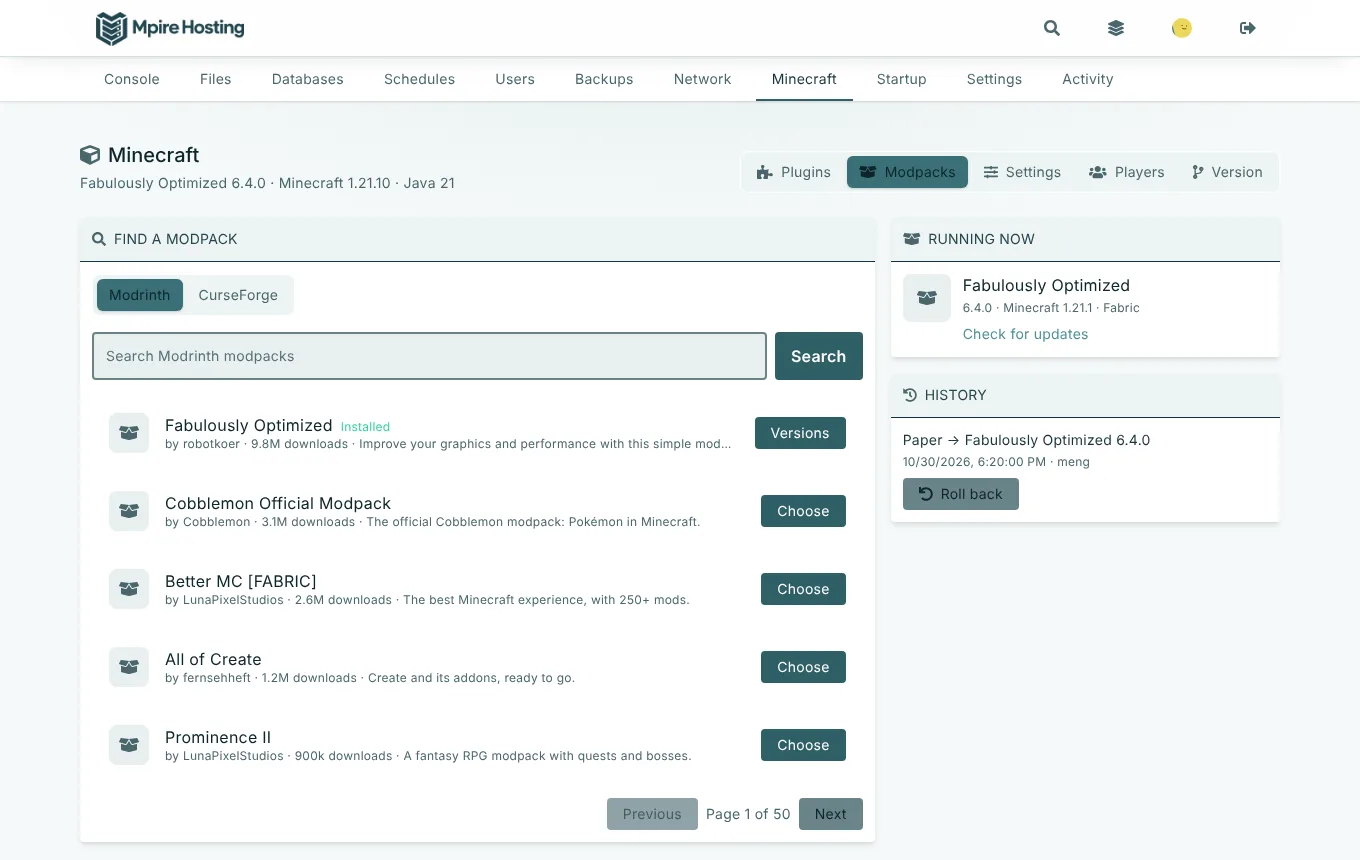
- Minecraft: install Paper plugins, or pick a modpack from Modrinth or CurseForge. The panel sets up the right Minecraft and Java version, and you can roll back if a pack doesn't suit you.
- Project Zomboid: add Steam Workshop mods from the Zomboid tab.
- Other games: Valheim takes BepInEx mods, ARK takes CurseForge mods, Counter-Strike 2 runs Metamod and CounterStrikeSharp plugins, Garry's Mod loads Workshop collections and addons, Arma Reforger and Conan Exiles take Workshop mods, Factorio takes mods from its mod portal, and 7 Days to Die and Terraria have their own mod loaders.
Can I switch my server to a different game? Screenshot
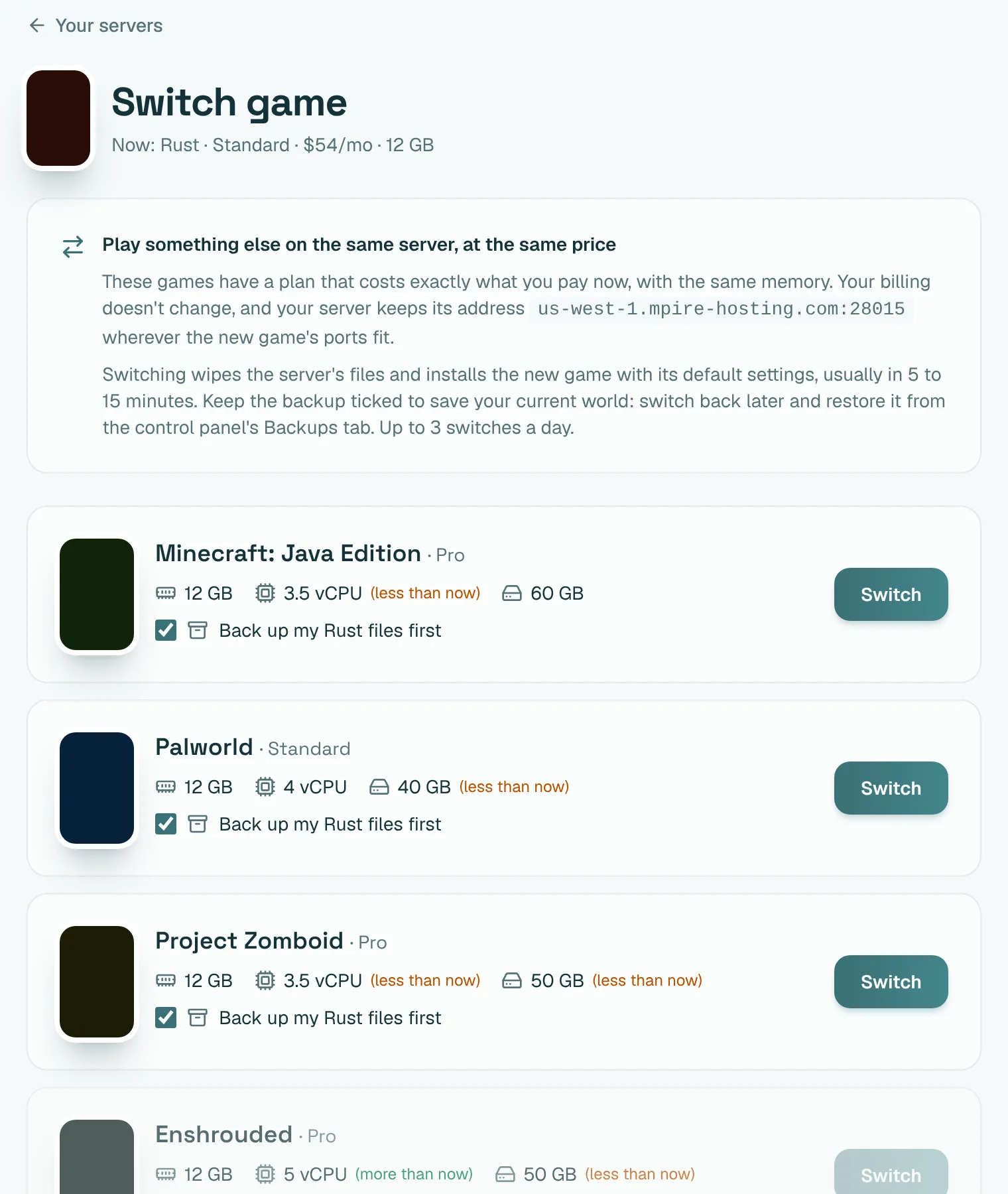
Yes. Press Switch game on My Servers to see every game with a plan at exactly your price and memory. Your billing doesn't change, and your server keeps its address wherever the new game's ports fit.
Switching wipes the server's files and installs the new game, usually in 5 to 15 minutes. Leave the backup ticked to keep your current world, so you can switch back later and restore it. You can switch up to 3 times a day.
Can I move my Rust server from another host?
Yes. Open the control panel, go to the Rust tab and choose Migrate. Give it your old host's SFTP or FTP login, a download link, or an archive you've uploaded to Files, and it copies everything across for you:
- Map, save, blueprints and player data
- server.cfg, owners and bans
- Oxide or Carbon plugins with their configs and data
- Harmony mods and extensions
Community and family
Discord for your players, and controls for parents.
Can I connect my server to Discord? Screenshot
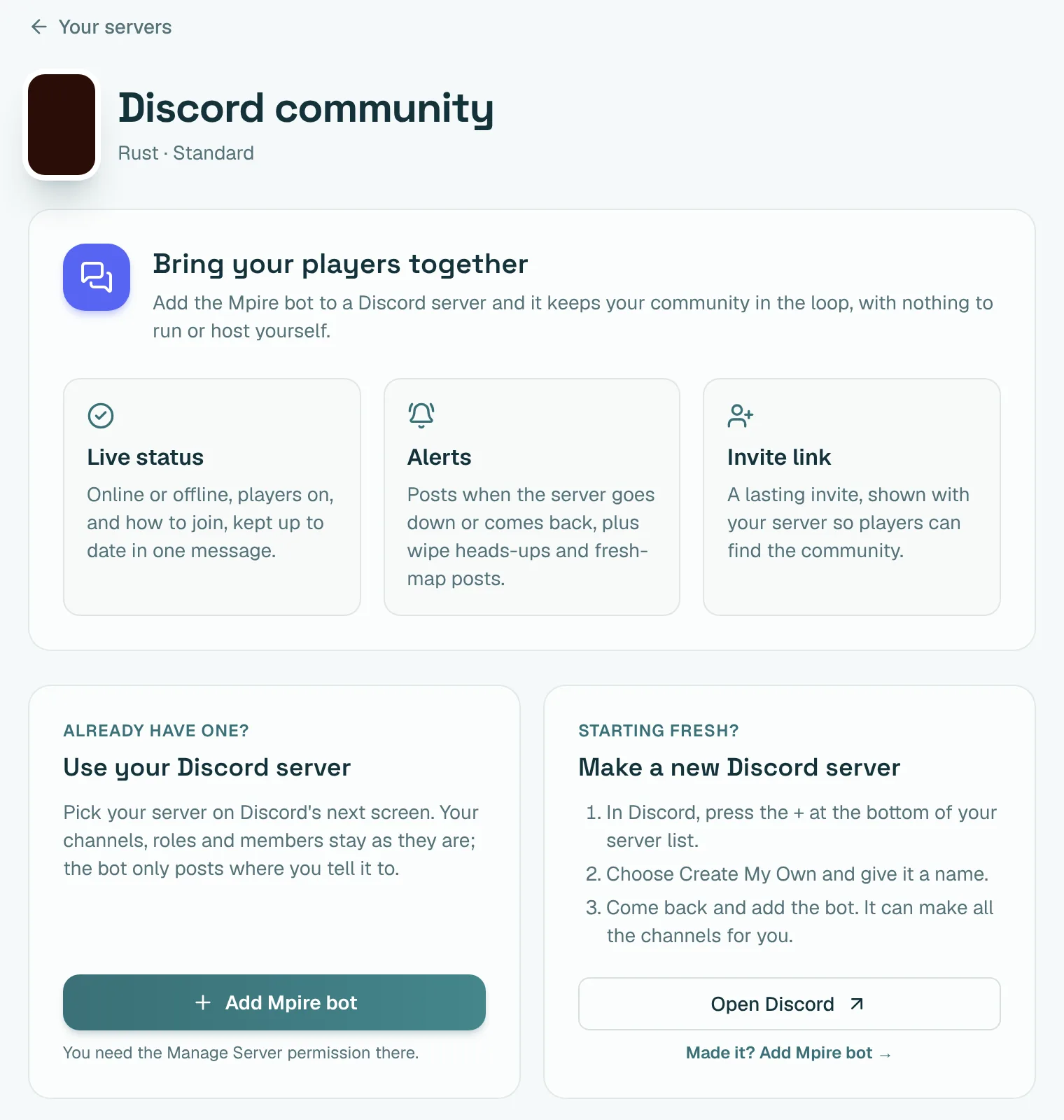
Yes. Press Set up next to Discord on My Servers. Add the Mpire bot to the Discord server you already have, or start a new one from our template. The bot posts your server's live status and player count, online and offline alerts, an invite link and, for Rust, wipe announcements.
Your existing channels, roles and members stay as they are; the bot only posts where you tell it to.
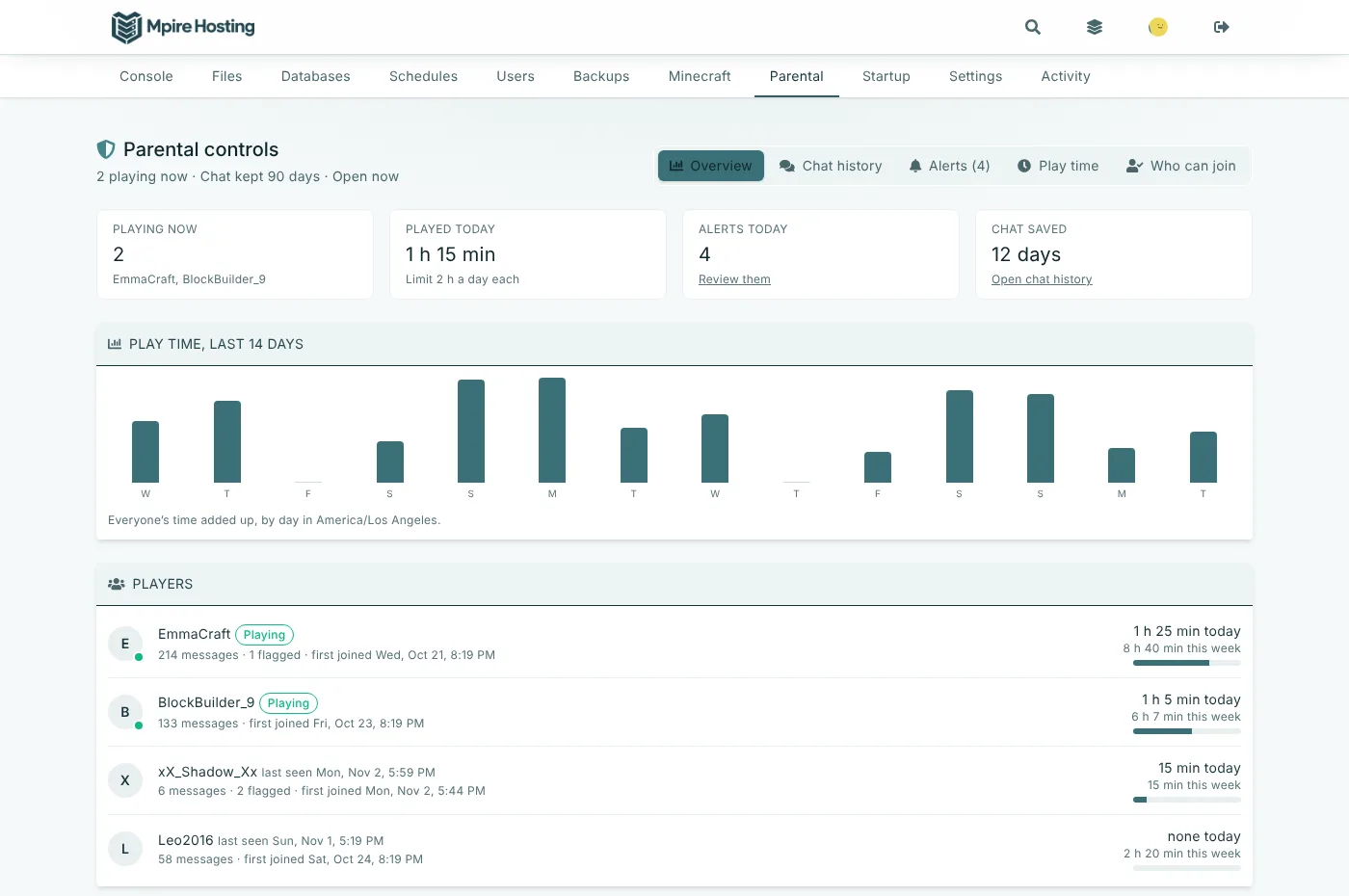
What are parental controls? Screenshot
A free Parental tab in the control panel for Minecraft, Palworld and Terraria servers. Turn it on to keep chat history, get alerts when someone shares personal info or joins for the first time, set play hours and daily limits, and choose who can join.
It's off until you turn it on, and only the server owner can see it.
Getting help
Talk to a person.
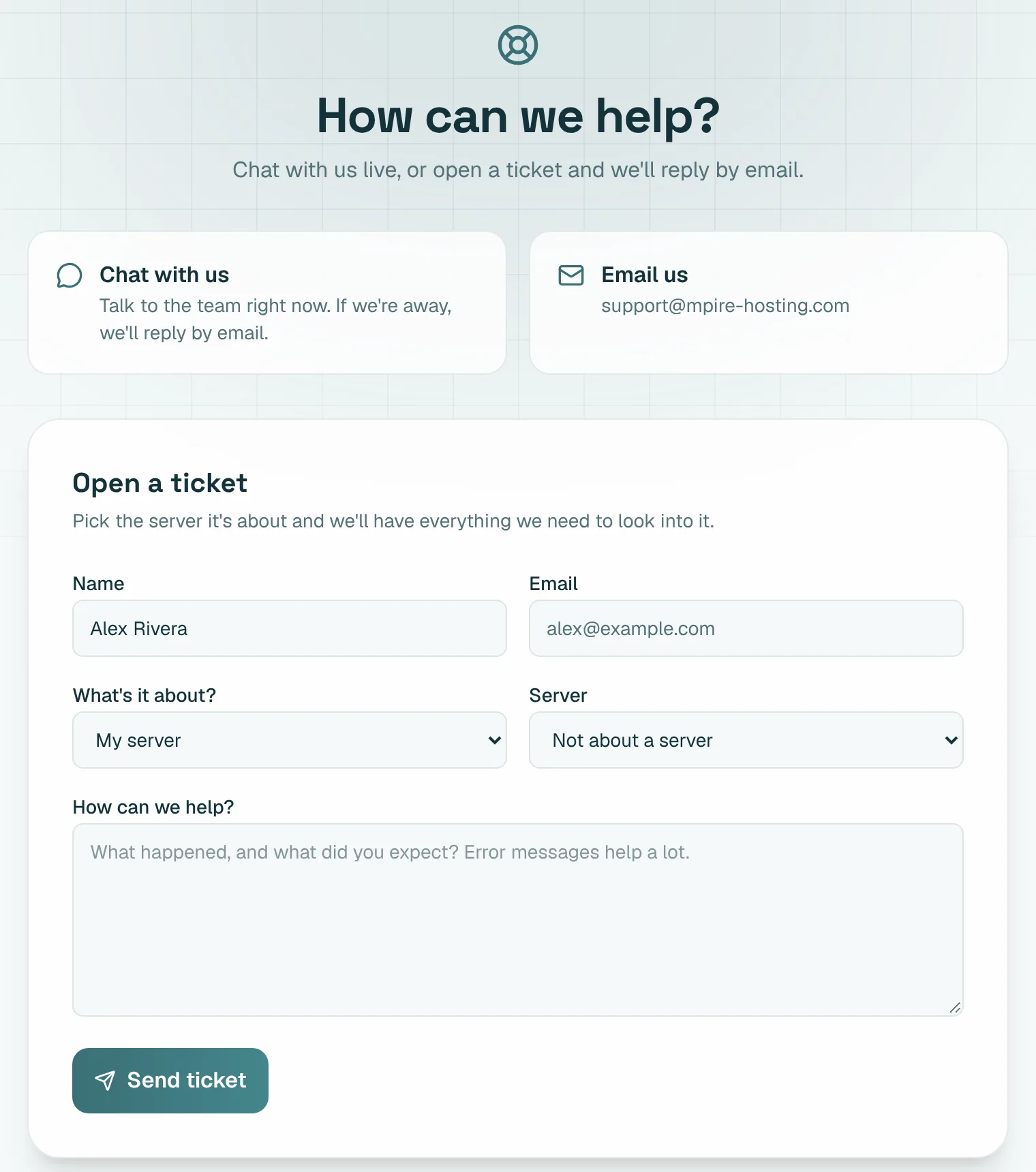
How do I get help? Screenshot
Press the chat button in the corner of any page to talk to us. If we're away, leave a message and it becomes a ticket we answer by email.
You can also open a ticket from the Support page. Sign in first and pick the server it's about, so we have everything we need. Your open tickets are listed there too.
Still stuck?
Talk to a person. If we're away, leave a message and we'll reply by email.